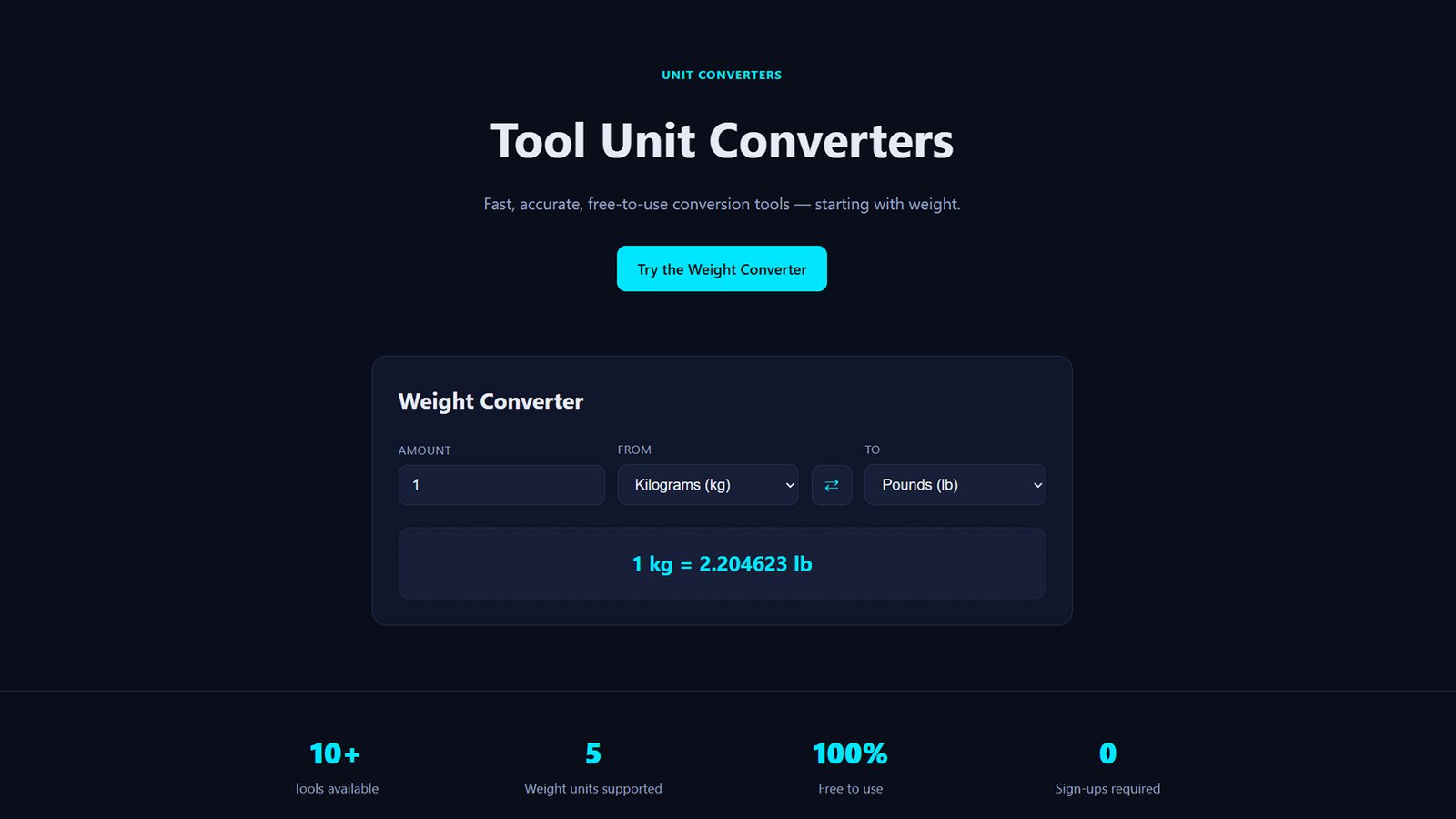
Download ToolForge, a dark-themed WordPress theme with a built-in Weight Converter (kg, g, lb, oz, ton) and fully customizable homepage layout. Free, fast, mobile-friendly.
How to Install ToolForge WordPress Theme
Step 1: Download the Theme Files
Download the toolforge-theme.zip file to your computer. Keep it zipped — WordPress installs themes directly from the compressed file.
Step 2: Log In to Your WordPress Dashboard
Go to yourdomain.com/wp-admin and sign in with your administrator account.
Step 3: Navigate to Appearance → Themes
From the left-hand sidebar, click Appearance, then Themes.
Step 4: Click “Add New Theme”
At the top of the Themes screen, click the Add New Theme button.
Step 5: Upload the Theme
Click Upload Theme, then Choose File and select toolforge-theme.zip. Click Install Now and wait for the upload to finish.
Step 6: Activate ToolForge
Once installed, click Activate to make ToolForge your site’s live theme.
Step 7: Customize Your Homepage Layout
Go to Appearance → Customize → Front Page Layout. From here you can:
- Reorder or toggle sections (hero, converter, stats, FAQ, related tools)
- Set your background, accent, and text colors
- Edit the hero title and subtitle
- Set default units for the Weight Converter
- Edit FAQ questions and answers
- Choose how many related tools to display
Step 8: Set a Static Homepage
Go to Settings → Reading, choose A static page isn’t required — ToolForge’s front-page.php template loads automatically once activated. If your site currently shows a static page instead, go to Settings → Reading and set Your homepage displays to Your latest posts, or simply leave it on default, since front-page.php takes priority in WordPress’s template hierarchy.
Step 9: Add Your Tools
Go to Tools (custom post type) in the dashboard sidebar to add and categorize additional converter tools using Tool Categories.
Step 10: Preview and Publish
Visit your homepage to confirm the Weight Converter, layout sections, and styling all display correctly, then you’re live.