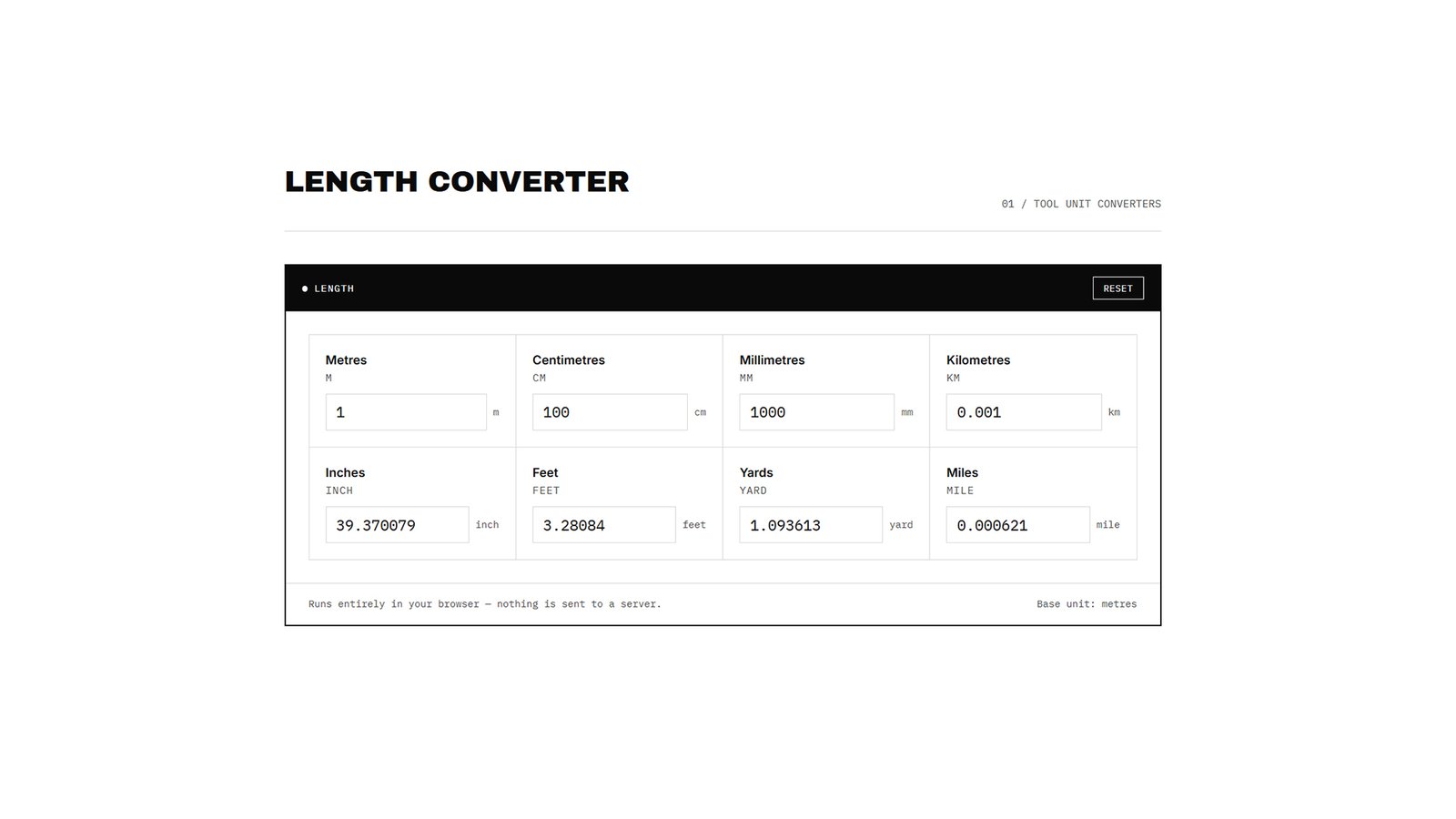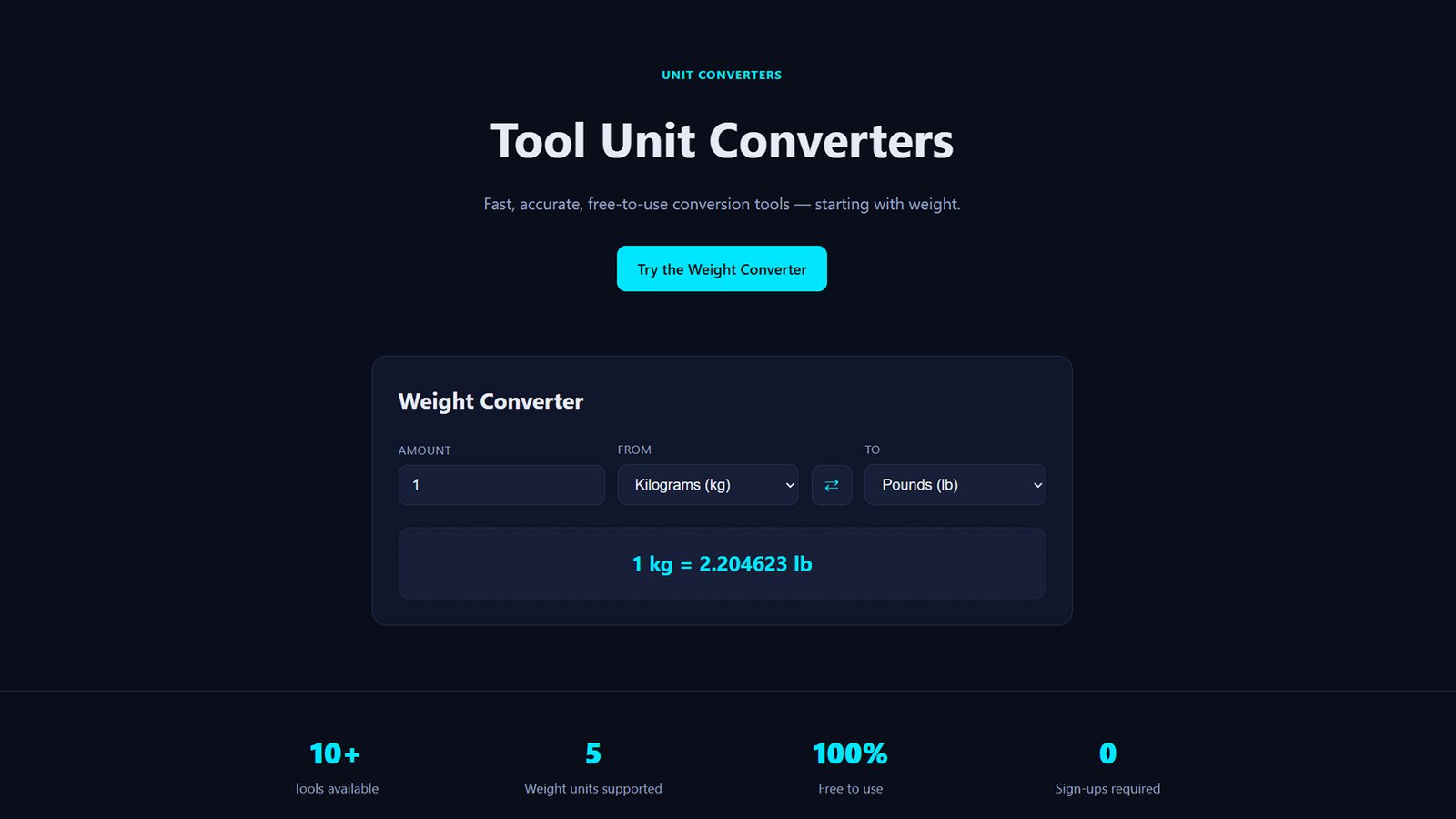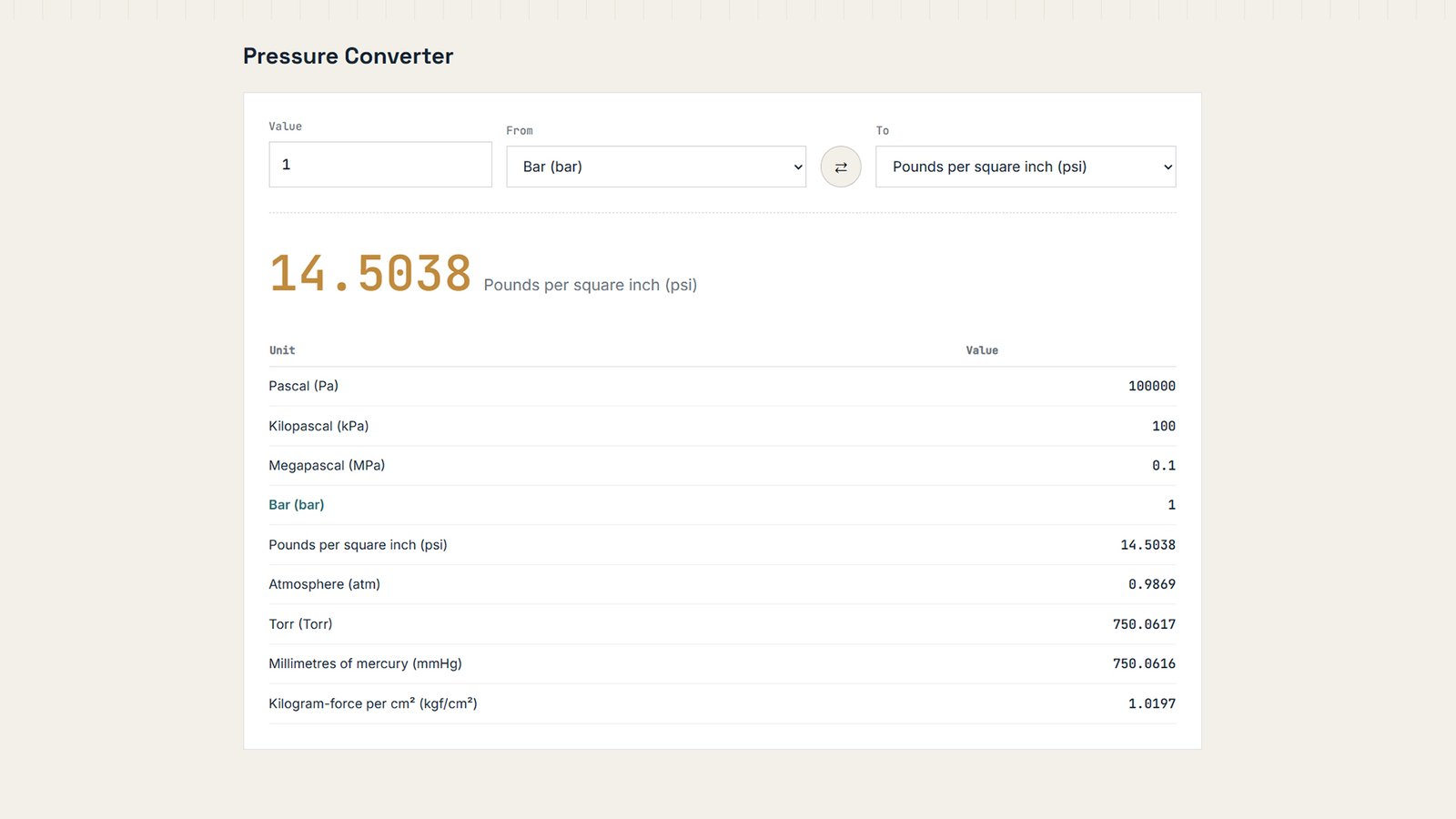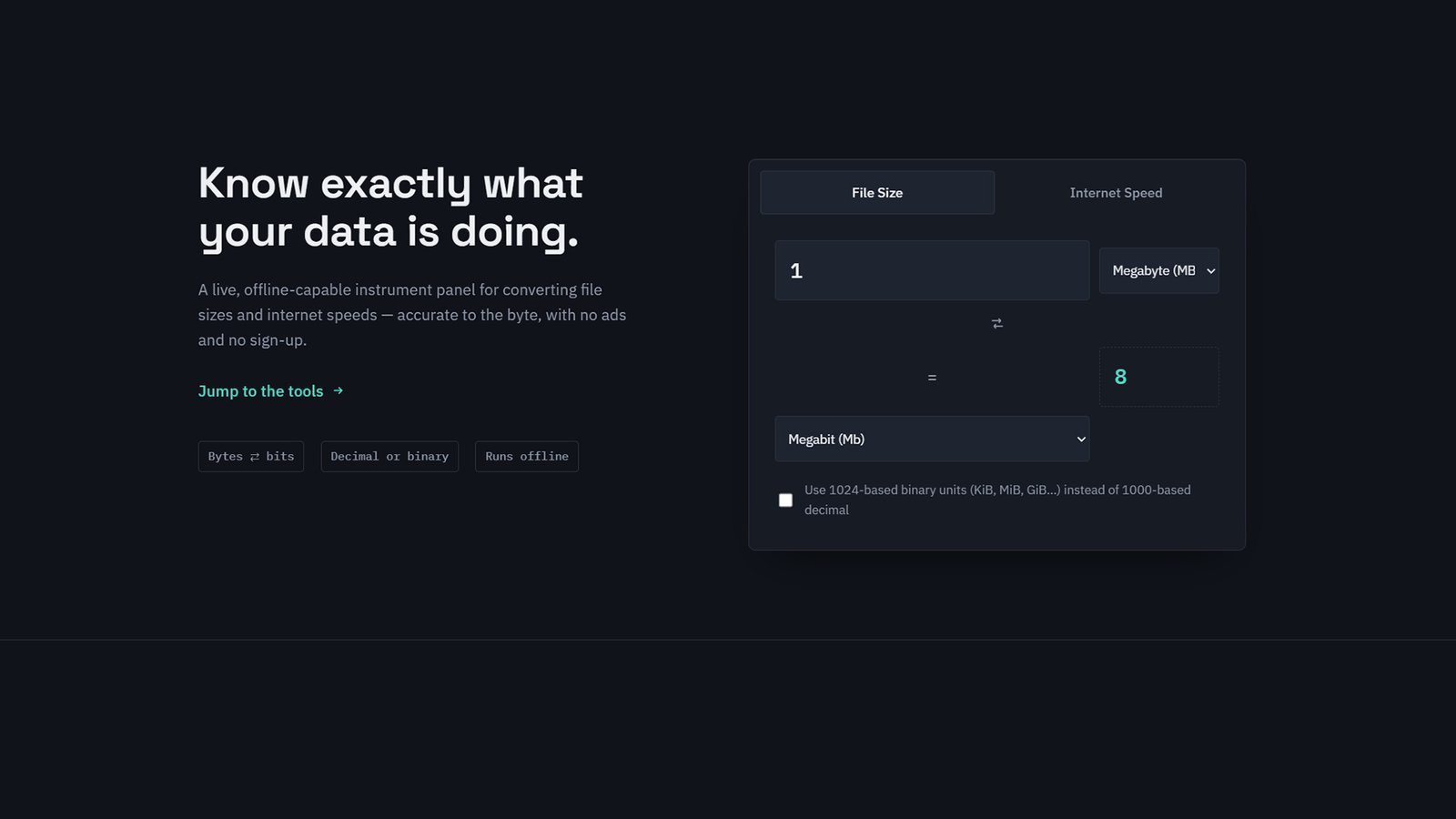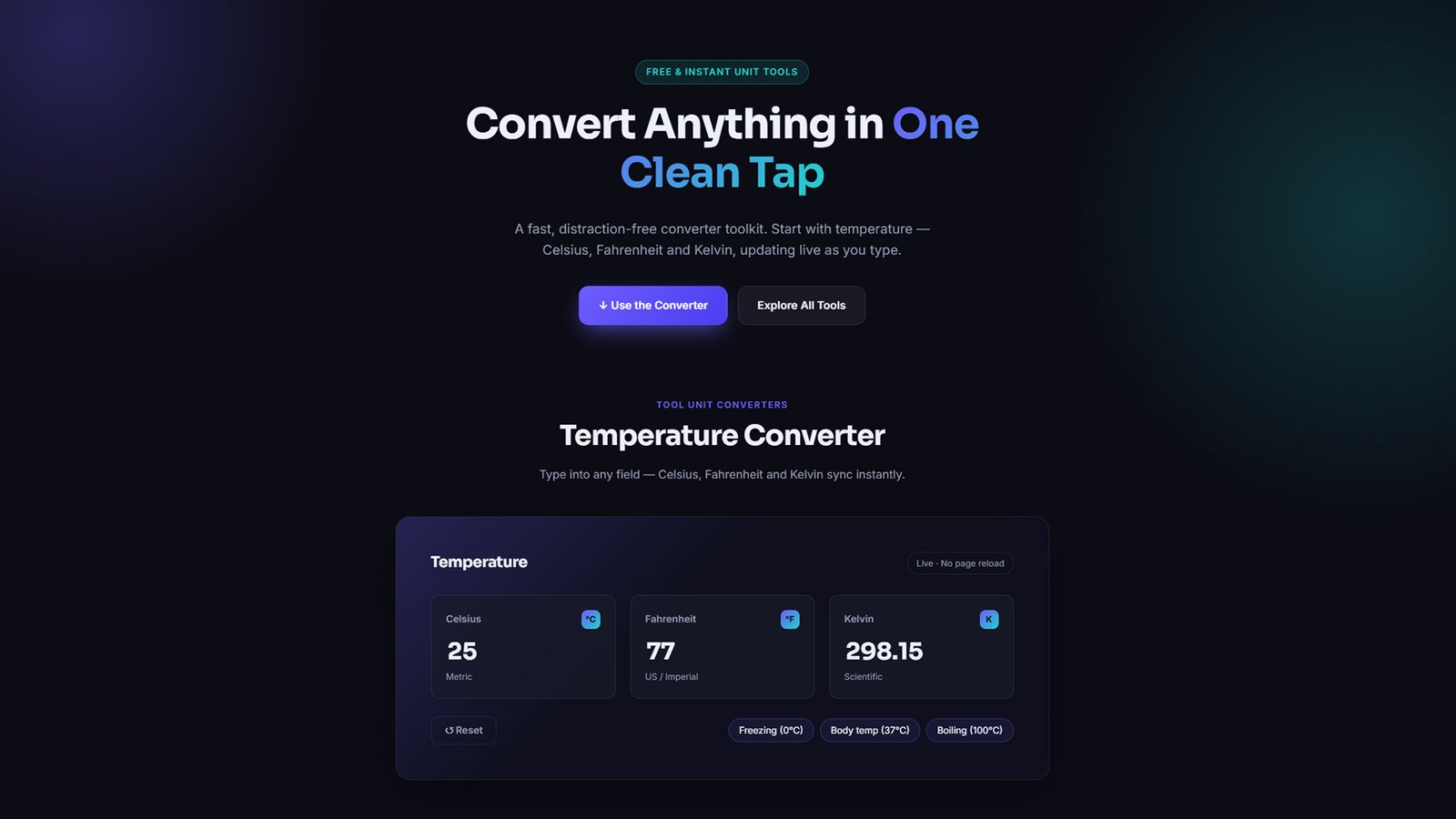
If you’ve ever needed a unit converter tool for your WordPress site without installing a bloated plugin, UnitCraft solves that out of the box. It’s a premium, dark-themed WordPress theme with a live Celsius, Fahrenheit, and Kelvin temperature converter built directly into the front page — no page builder, no shortcodes, no third-party API. Every color, font, and section is customizable from the native WordPress Customizer, so you can make it match your brand in minutes.
How to Install UnitCraft (H2 — great for a “How To” schema + featured snippet)
Step 1: Download the Theme
Download the unitcraft.zip file to your computer. Don’t unzip it — WordPress installs themes directly from the compressed file.
Step 2: Log In to WordPress Admin
Go to yourdomain.com/wp-admin and log in with an administrator account.
Step 3: Upload the Theme
Navigate to Appearance → Themes → Add New → Upload Theme. Click Choose File, select unitcraft.zip, then click Install Now.
Step 4: Activate UnitCraft
Once the upload finishes, click Activate to make UnitCraft your live theme.
Step 5: Set Up Your Homepage
UnitCraft automatically uses its custom front-page template — no extra settings required. If your site currently shows a static page as the homepage, UnitCraft’s front-page design will still take priority.
Step 6: Customize Your Site
Go to Appearance → Customize → UnitCraft Theme Options to edit:
- Colors, fonts, and card style
- Hero text, buttons, and alignment
- The Temperature Converter’s title and default value
- Feature cards and call-to-action text
- Section order (rearrange or hide any block)
Step 7: Add Menus and Widgets (Optional)
Set up navigation under Appearance → Menus, and add footer content under Appearance → Widgets → Footer Widget Area.
Step 8: Publish and Test the Converter
Visit your homepage and test the Temperature Converter — type into any of the three fields (°C, °F, K) and confirm the others update instantly.