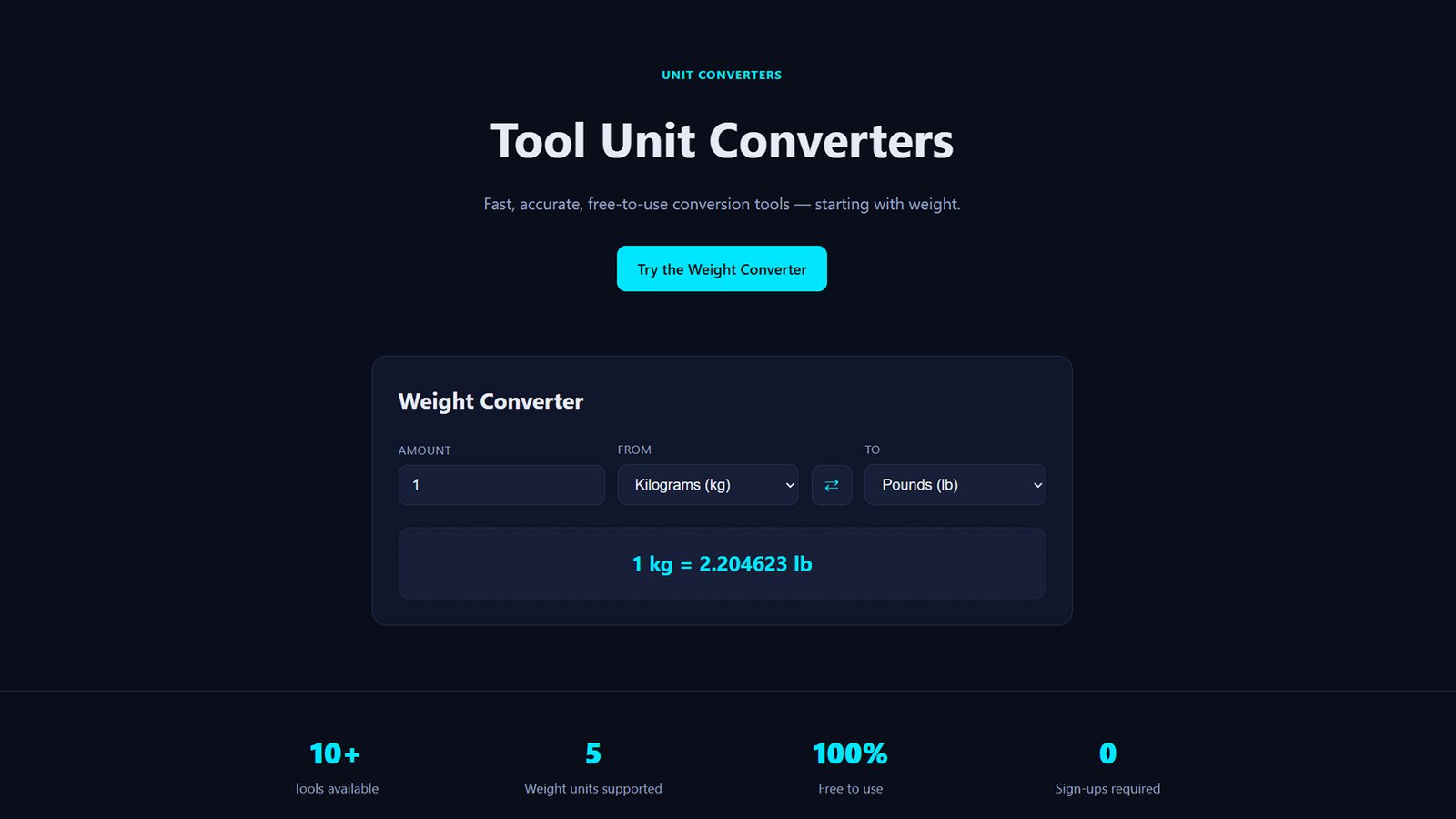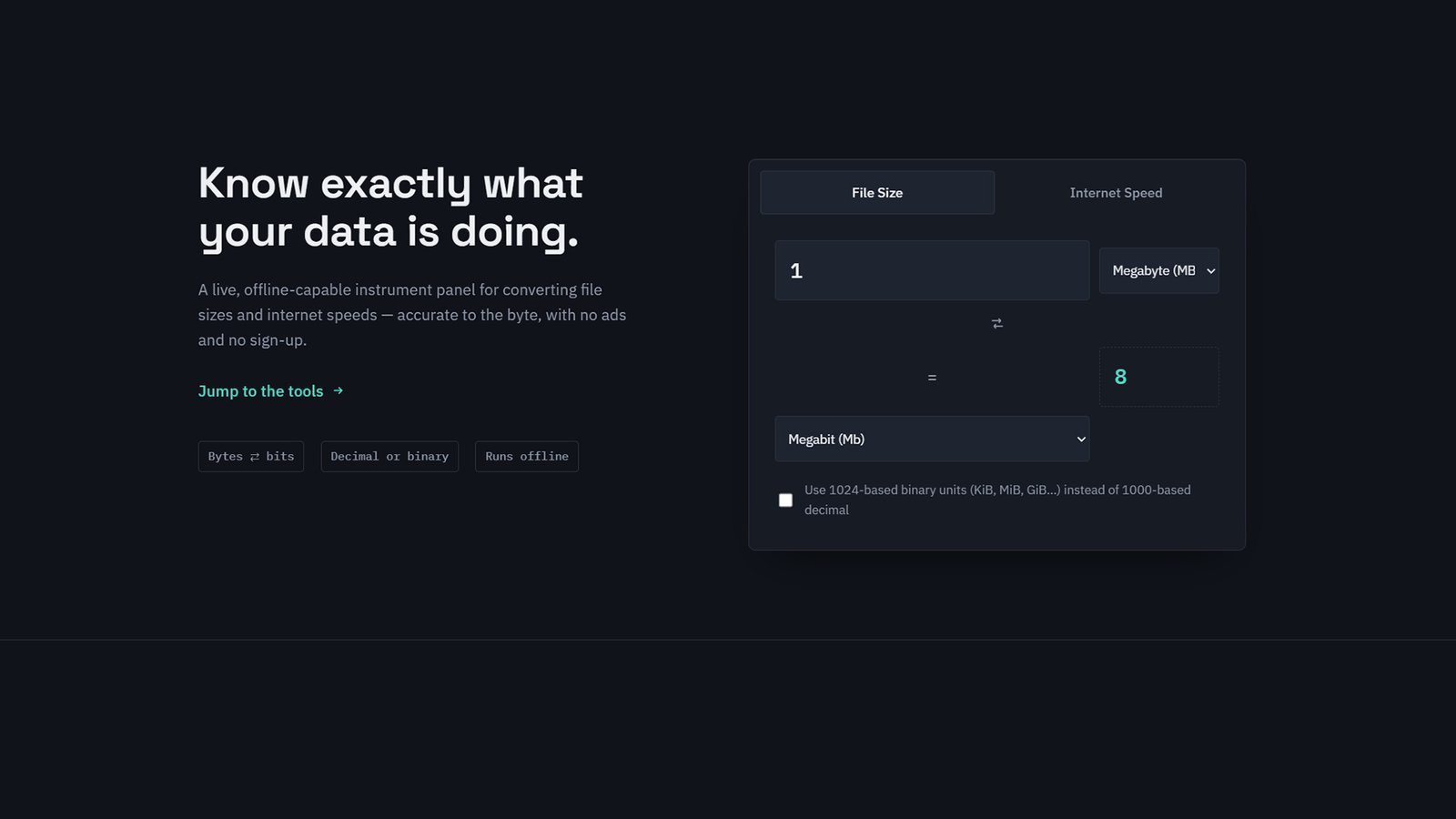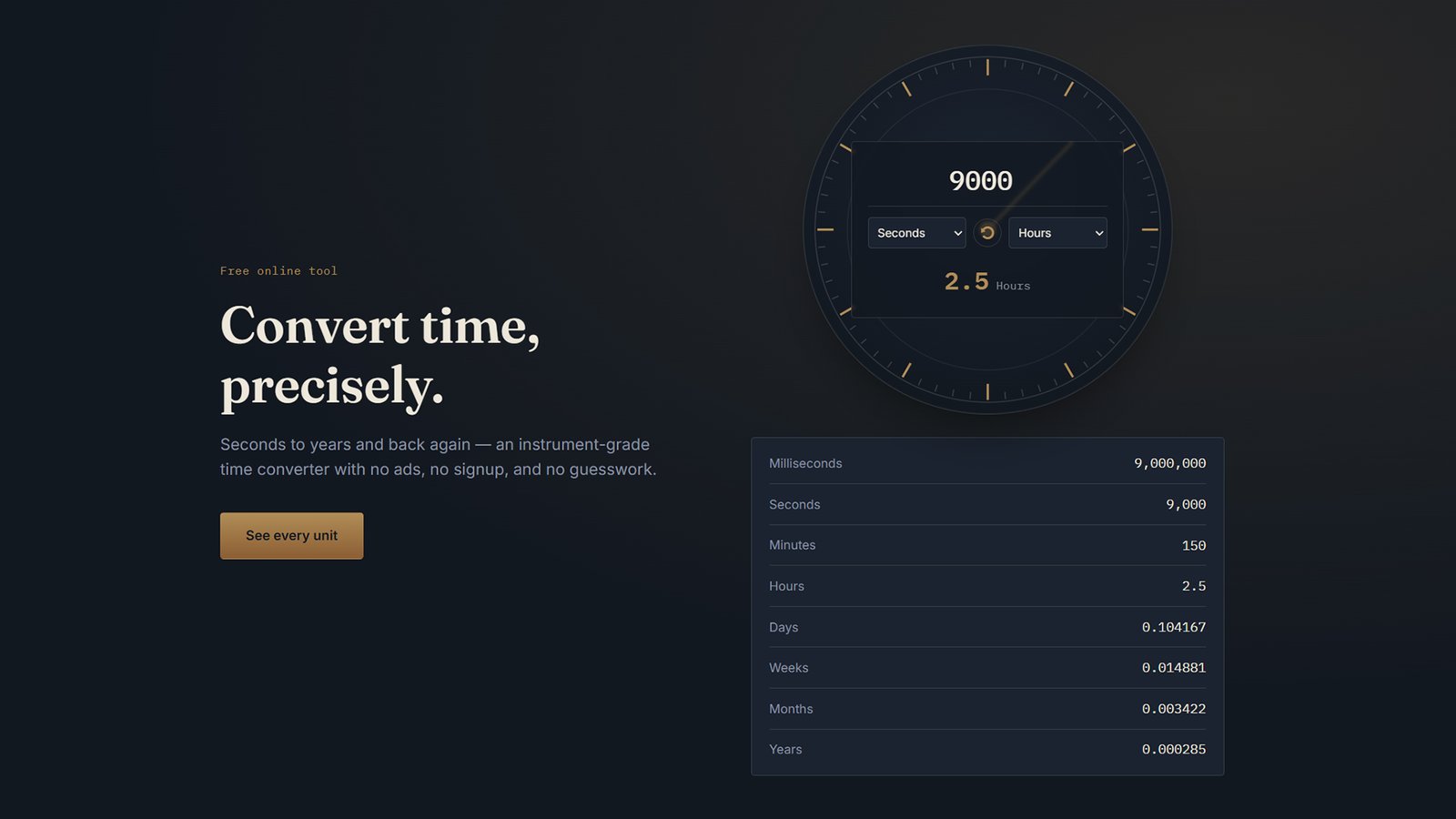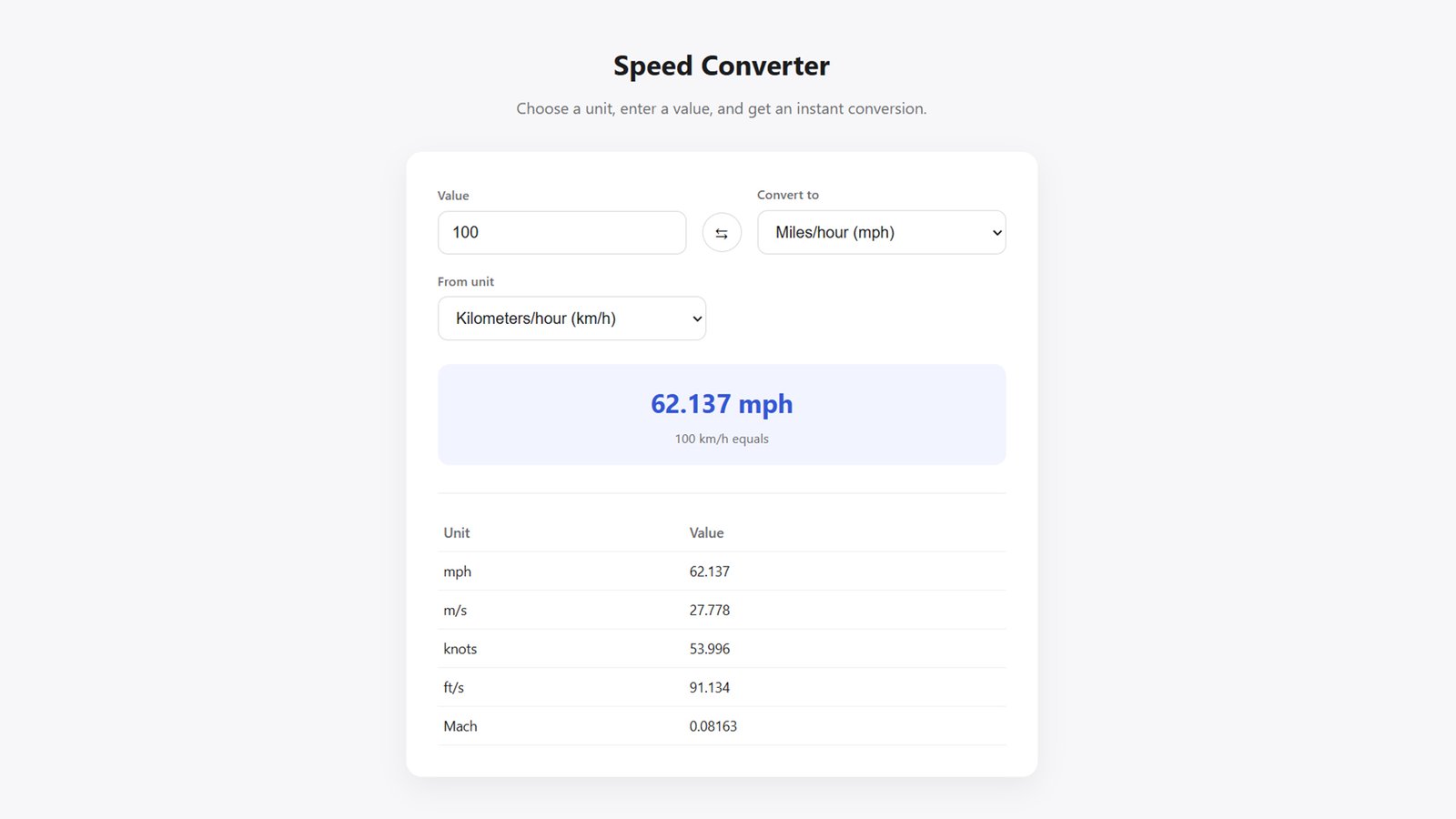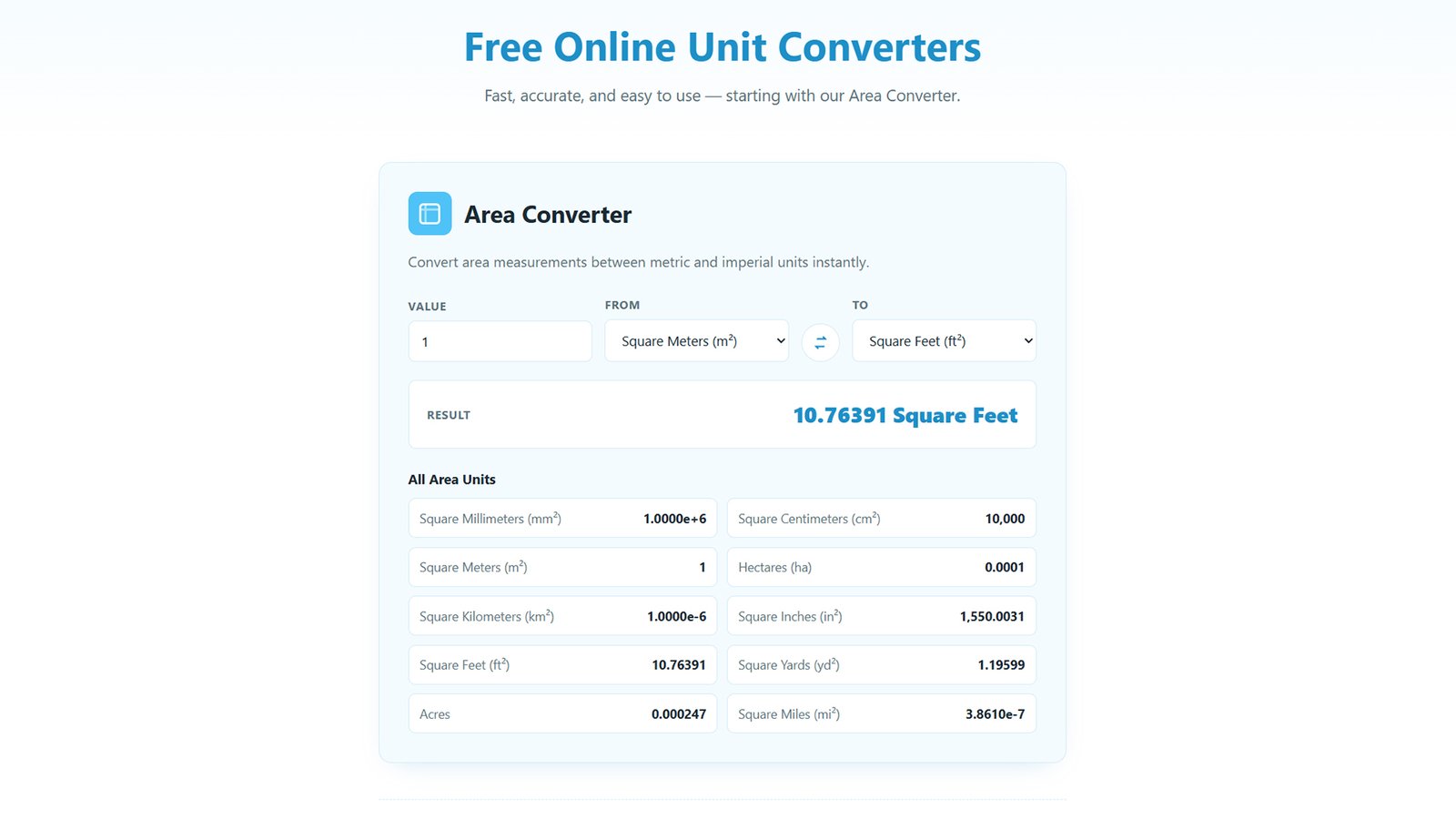
Looking for a WordPress unit converter theme that’s fast, clean, and easy to customize? ARConverter is a lightweight WordPress theme built around a practical, front-page Area Converter tool — letting visitors instantly convert between square meters, square feet, acres, hectares, and more, with no plugins required. Designed in a crisp white and light-blue color palette, every color and layout option is fully customizable through the native WordPress Customizer. Whether you’re building a niche calculator site, an educational resource, or a broader unit-conversion hub, ARConverter gives you a ready-to-use tool plus the flexibility to make it your own. Here’s how to install it.
How to Install the ARConverter WordPress Theme
Step 1: Download the Theme File
Download the arconverter.zip file to your computer. Keep it zipped — WordPress installs themes directly from a .zip file, so there’s no need to extract it.
Step 2: Log In to Your WordPress Dashboard
Go to yourdomain.com/wp-admin and log in with your administrator account.
Step 3: Navigate to Appearance → Themes
From the left-hand admin menu, click Appearance, then Themes.
Step 4: Click “Add New Theme”
At the top of the Themes screen, click the Add New Theme button.
Step 5: Upload the Theme
Click Upload Theme, then Choose File and select arconverter.zip from your computer. Click Install Now and wait for the upload to finish.
Step 6: Activate ARConverter
Once installation completes, click Activate to make ARConverter your active WordPress theme.
Step 7: Set Your Homepage to Display the Converter
Go to Settings → Reading. Under “Your homepage displays,” select A static page, and choose any page as your homepage (create one first under Pages → Add New if needed, e.g. “Home”). Save changes — the Area Converter tool loads automatically on the front page.
Step 8: Customize Colors and Layout
Go to Appearance → Customize → ARConverter Theme Options to adjust:
- Background, surface, and accent colors (defaults to white and light blue)
- Container width, corner roundness, and header/footer layout
- Sidebar position for blog posts
- The Area Converter’s title, default units, and description text
Step 9: Add a Logo and Menu (Optional)
Under Appearance → Customize → Site Identity, upload a logo. Under Appearance → Menus, create and assign a primary navigation menu.
Step 10: Preview Your Site
Visit your homepage to confirm the Area Converter tool loads and test a few conversions to make sure everything works as expected.