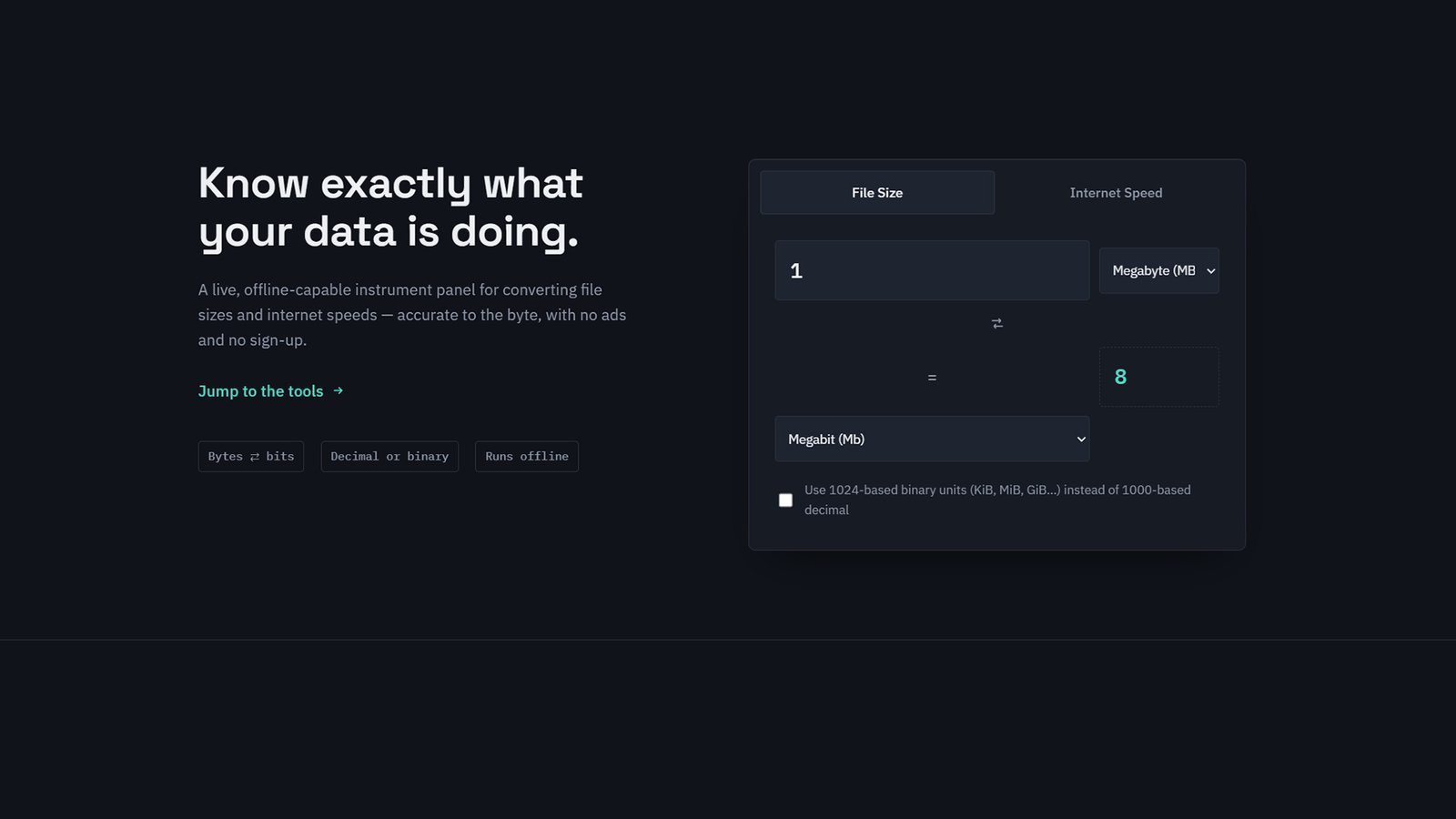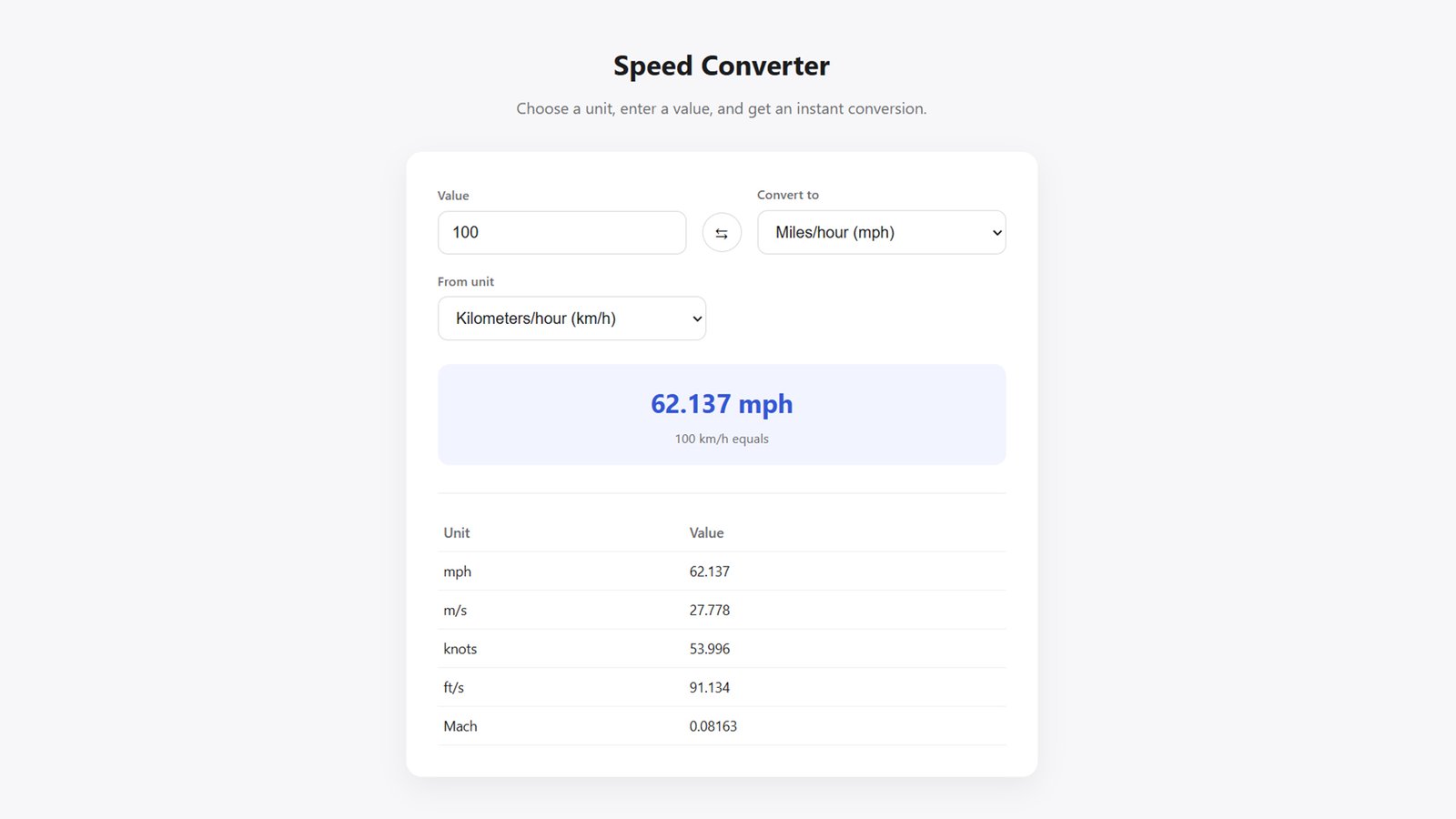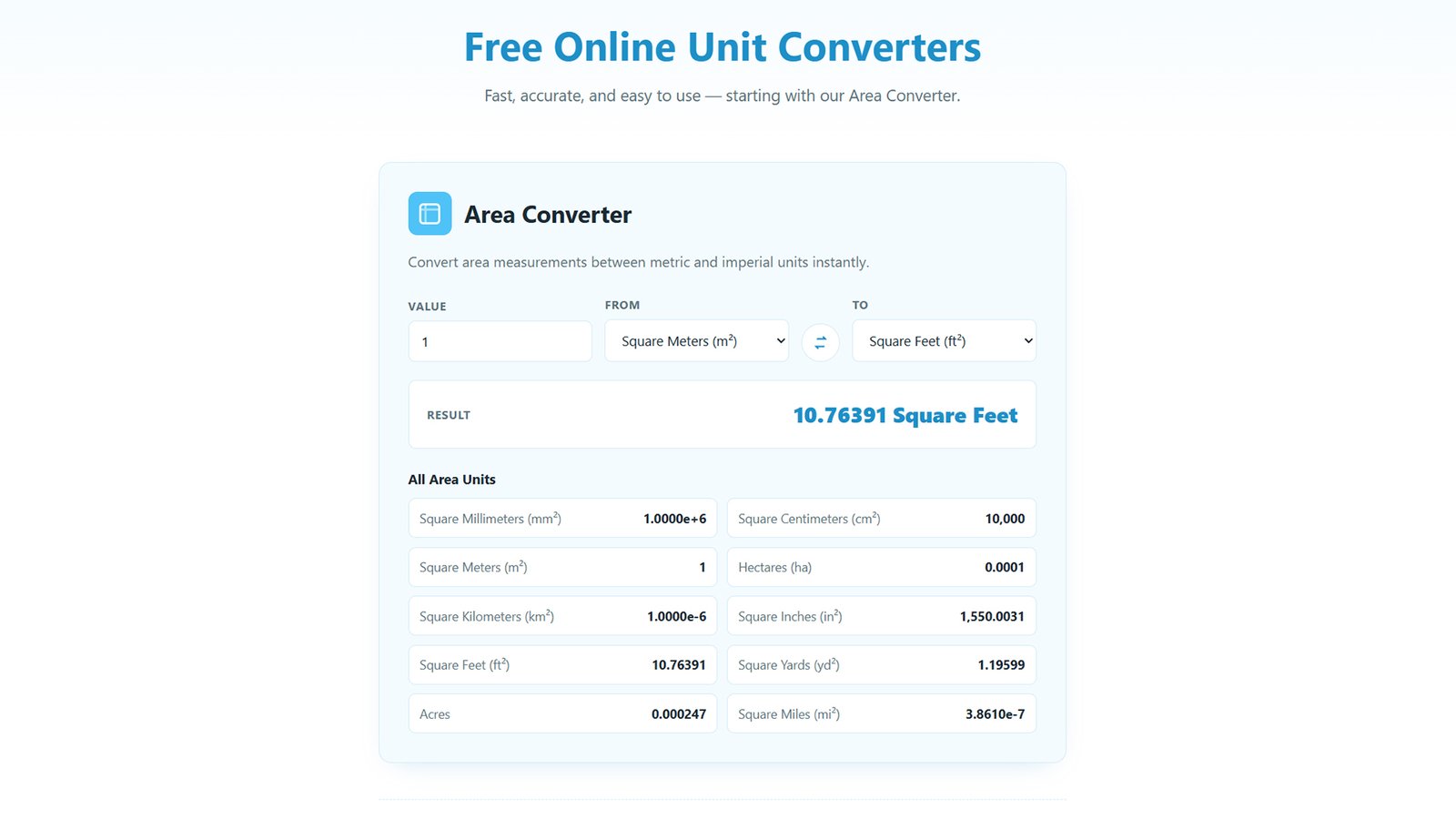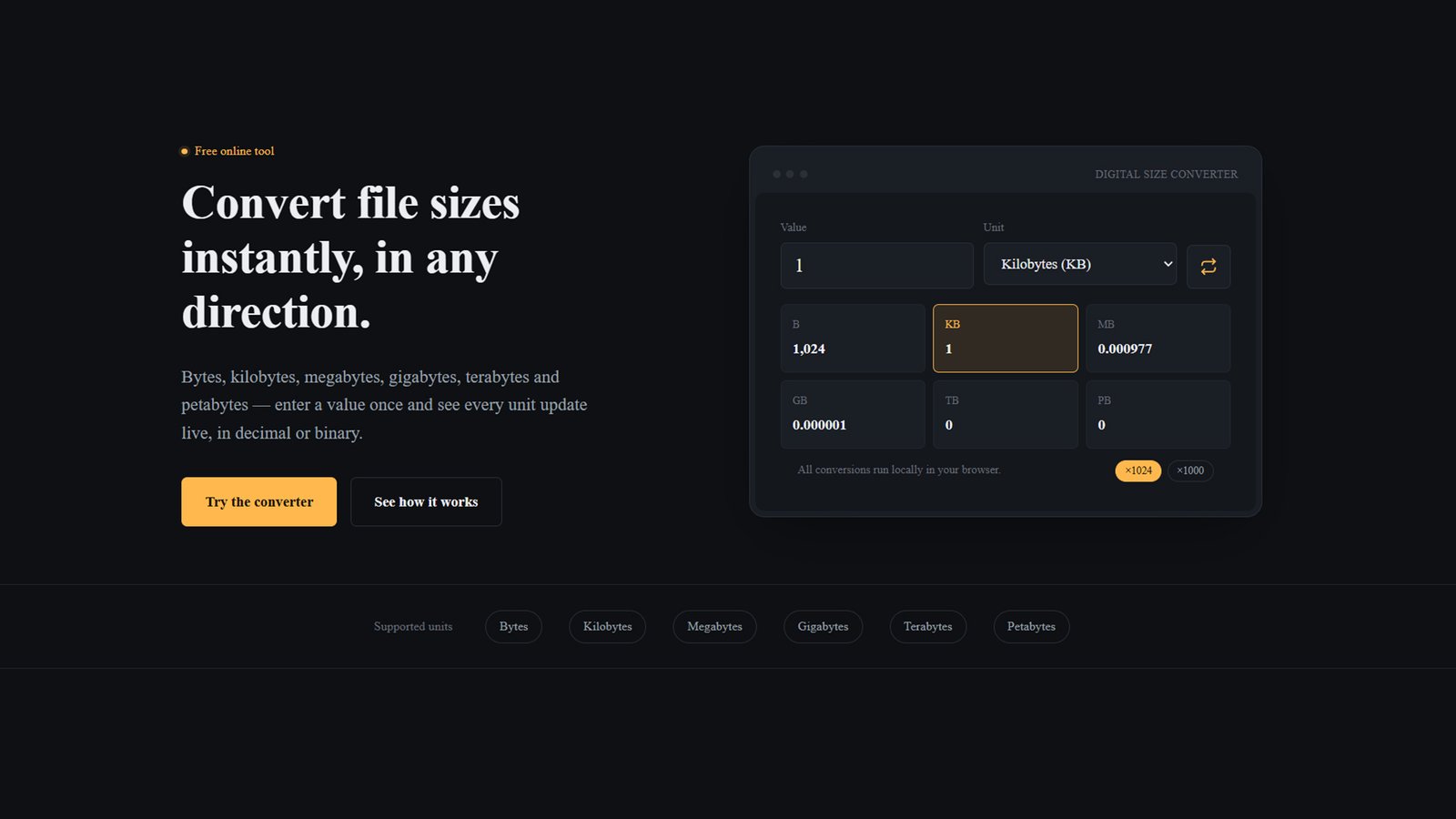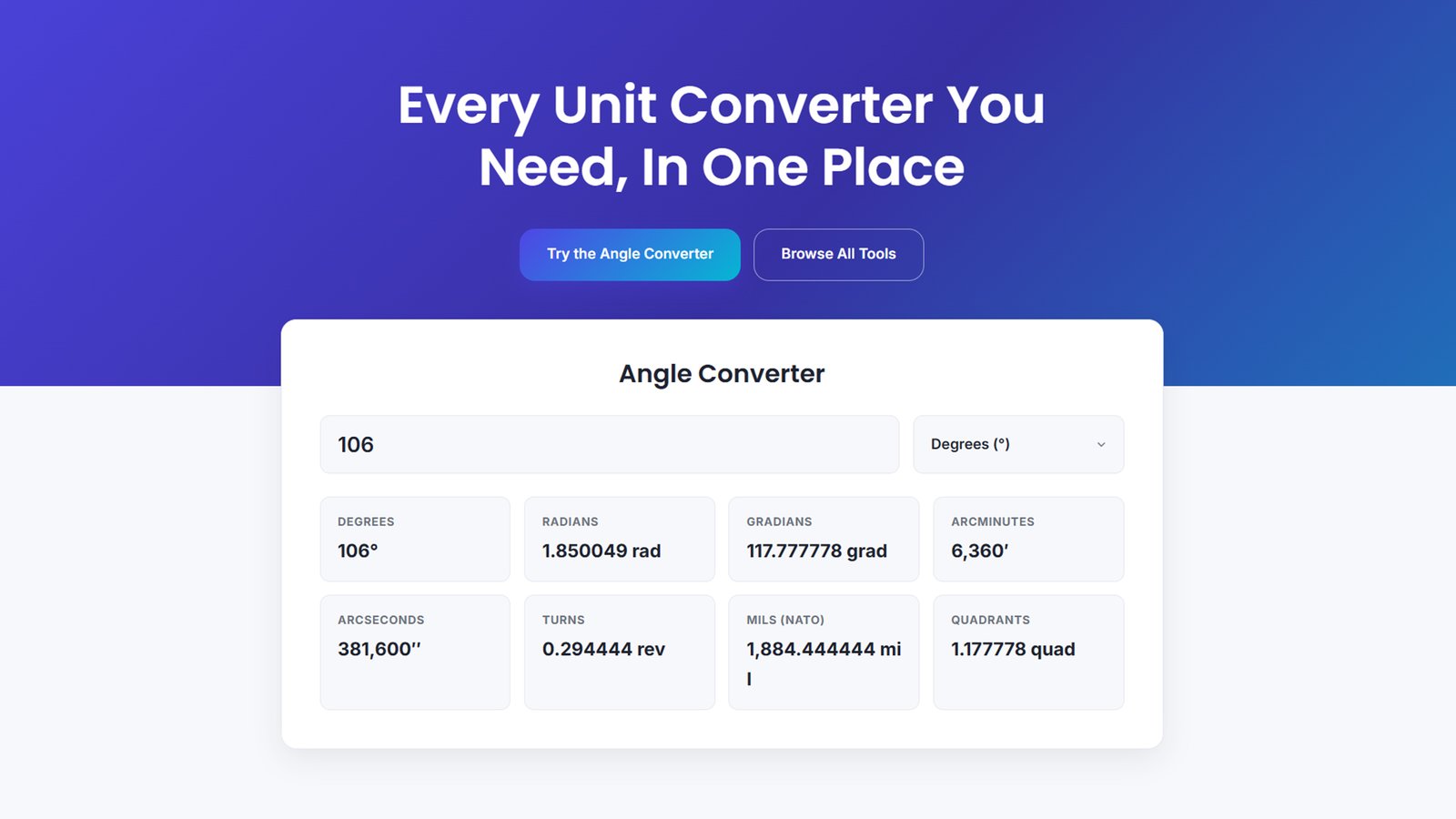
Download Converta, a premium, fully customizable WordPress theme with a live Angle Converter on the homepage. Easy install, no coding required.
How to Install the Converta WordPress Theme
Follow these steps to install and activate Converta on your WordPress site in under five minutes.
Step 1: Download the Theme File
Download the converta-theme.zip file to your computer. Do not unzip it — WordPress installs themes directly from the compressed .zip file.
Step 2: Log In to Your WordPress Dashboard
Go to yourdomain.com/wp-admin and log in with your administrator account.
Step 3: Navigate to the Theme Upload Screen
In the left sidebar, go to Appearance → Themes, then click the Add New Theme button at the top of the page.
Step 4: Upload the Theme
Click Upload Theme, then click Choose File and select the converta-theme.zip file you downloaded in Step 1. Click Install Now and wait for the upload to finish.
Step 5: Activate Converta
Once installation completes, click Activate. Your site is now running the Converta theme.
Step 6: Set Up Your Homepage
Converta automatically uses its built-in front page template (with the Angle Converter) as your site’s homepage. If your site already has a static front page assigned under Settings → Reading, either:
- Switch the setting to “Your latest posts”, or
- Make sure the assigned static page uses the Default Template, so Converta’s homepage layout still applies.
Step 7: Customize Your Site
Go to Appearance → Customize → Converta Theme Options to personalize:
- Colors — set your brand’s primary, accent, and background colors
- Typography — choose heading and body fonts from Google Fonts
- Layout & Style — adjust container width, corner radius, button shape, and shadows
- Header — enable/disable sticky header, choose logo position
- Hero Section — edit your homepage headline, subheading, and buttons
- Angle Converter — customize the tool’s title, subtitle, and default starting value
- More Tools, Features, and CTA sections — edit text or hide sections you don’t need
- Footer — set column count, footer text, and social media links
Step 8: Add Your Logo
Still inside the Customizer, go to Site Identity to upload your logo and set your site title and tagline.
Step 9: Publish and Test
Click Publish, then visit your live site and test the Angle Converter to confirm values update correctly as you type.
Frequently Asked Questions
Does Converta require any plugins? No. The Angle Converter and all layout customization options work natively — no page builder or converter plugin is required.
Can I add more converters later (length, weight, temperature)? Yes. Converta includes a placeholder “More Tools” grid, and the Angle Converter’s code is structured so developers can duplicate the pattern to add new converters.
Is Converta mobile-friendly? Yes, the entire theme — including the converter tool — is fully responsive.
Is Converta free? Yes, Converta is free to download and use.
Conclusion
Converta combines a genuinely useful, working tool with a premium, fully customizable design — giving you a fast, SEO-ready foundation for any unit-converter or calculator website. Download it today, install it in minutes, and have a live Angle Converter running on your homepage before your coffee gets cold.