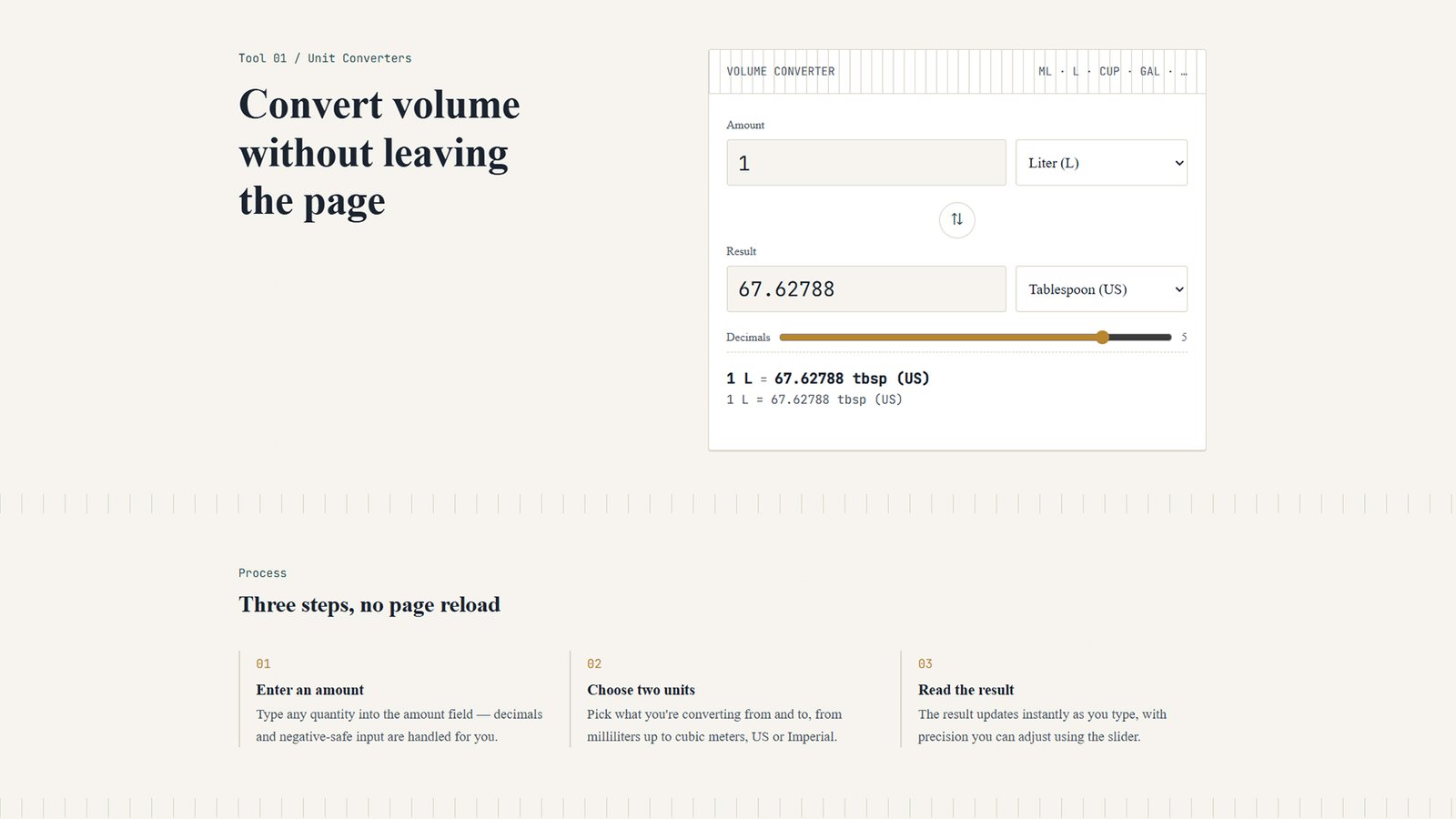
Calibrate: A Free WordPress Theme with a Built-In Volume Converter Tool
If you run a tools site, a recipe blog, a home-brewing resource, or any WordPress site where visitors need to convert liquid measurements, Calibrate gives you a ready-made front page: a live, no-reload Volume Converter paired with a fully customizable layout — no plugins, no code editing, and no page builder required.
What Calibrate Includes
- Live Volume Converter — converts between milliliters, liters, cubic centimeters, cubic meters, US teaspoons/tablespoons/cups/pints/quarts/gallons, and Imperial pints/gallons, instantly, in the browser.
- Fully customizable layout — change page width, header style, hero arrangement, colors, fonts, and footer columns from the native WordPress Customizer.
- Reorderable front-page sections — show, hide, or reorder the hero, “How it Works,” “More Tools,” and call-to-action sections with a single setting.
- Lightweight and fast — no external converter plugin, no jQuery dependency, minimal JavaScript.
- Built-in widget areas — 1 to 4 footer columns, controlled from the Customizer.
How to Install the Calibrate WordPress Theme
Installing Calibrate takes about five minutes, even if you’ve never installed a WordPress theme before.
- Download the theme. Save the
calibrate-theme.zipfile to your computer. Do not unzip it — WordPress uploads themes as a single ZIP file. - Log in to your WordPress dashboard. Go to
yourdomain.com/wp-adminand sign in with your administrator account. - Open the theme installer. Navigate to Appearance → Themes → Add New Theme, then click Upload Theme near the top of the page.
- Upload the ZIP file. Click Choose File, select
calibrate-theme.zip, and click Install Now. WordPress will unpack and validate the theme automatically. - Activate Calibrate. Once the install finishes, click Activate to make Calibrate your live theme.
- Set your homepage to display the front page. Go to Settings → Reading, choose “A static page” under “Your homepage displays,” and select any page (or create a new one). Calibrate automatically loads its Volume Converter front page for your site’s designated homepage.
- Customize your layout, colors, and converter settings. Go to Appearance → Customize → Calibrate Theme Options to:
- Set page width, header style, and hero layout under Layout
- Pick your color palette under Colors
- Choose heading/body fonts under Typography
- Show, hide, or reorder homepage sections under Front Page Sections
- Set default converter units and precision under Volume Converter
- Configure footer columns and credit text under Footer
- Add your menus (optional). Go to Appearance → Menus, create a menu, and assign it to the Primary Menu and/or Footer Menu locations.
- Publish and preview. Visit your homepage to see the live Volume Converter in action, then fine-tune settings in the Customizer until the layout matches your brand.